PROJECT_07
Toolkit
Tool for the call center's IT support staff: a single .exe that turns into one click the fixes that used to be done by hand, seat by seat.
- TYPE
- Desktop tool · IT support
- STATUS
- IN PROGRESS
- SCREENSHOTS
- 6
Toolkit.exe Windows · no Python required
01 Getting started
Toolkit is a single file, Toolkit.exe. Nothing to install: copy it to the machine or run it from a USB stick. Everything it needs (.NET Framework 4.8 and Windows PowerShell 5.1) ships with Windows 10 and 11.
- Download
Toolkit.exe(button above) and copy it to the machine, or run it straight from the USB stick. - Double-click and accept the administrator prompt. It is required: the tool touches services, registry and accounts.
- Each tab solves one thing: Seat setup, Location, Applications, Network, Firewall, Support and Users. The black output at the bottom is shared and shows everything it does.
- Golden rule: first Audit or Check (changes nothing), then apply. Green and blue buttons change things and always ask for confirmation.
- Everything is kept in the window log and in
C:\ProgramData\Toolkit\logs\. Copy log and paste it into the ticket: worth more than a screenshot.
02 Seat setup
For a new machine. One click and one confirmation apply, in order, everything an agent seat needs. Each step can be unticked; when it finishes it shows a summary and opens the report folder. Cancel in the status bar stops the sequence.
- Location: service, policies, every user and the browsers (with the options from the Location page).
- Microphone and camera allowed for all users and desktop apps.
- Never sleep on mains power; the screen turns off after 15 min.
- Time synced via NTP.
- Installs any missing catalogue applications marked
enabled=true(Genesys Cloud, Krisp, NetExtender, GoTo…). - Zoho check-in verification and the ticket report.
03 Location and Zoho check-in
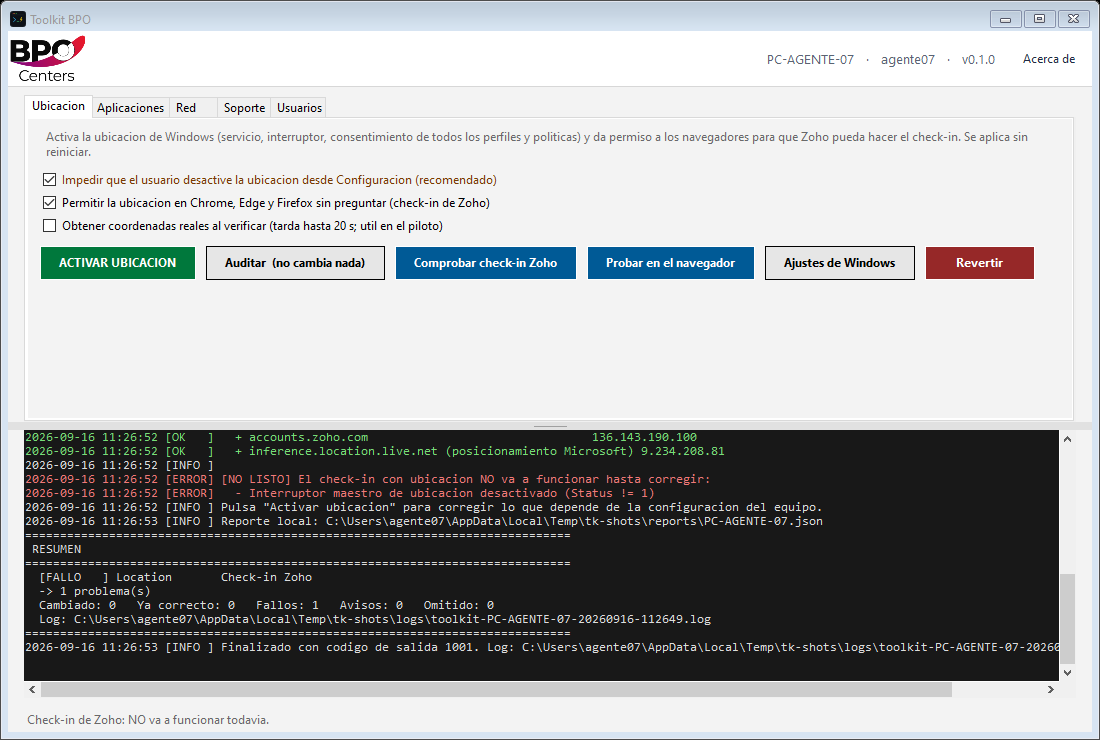
Turning on location in Windows is not a single switch: there are four layers and, if one is missing, applications get no position and do not say why. Activate location applies all of them and, when done, checks the check-in.
- Geolocation service (
lfsvc) set to automatic and running. - System master switch.
- Consent for the machine and for every user on it, including those without an open session and the Default profile, and for desktop applications.
- Policies so nobody can turn it off from Settings (ticked by default).
- Location permission in Chrome, Edge and Firefox, so Zoho does not have to ask and nobody clicks Block by mistake.
No reboot needed: the service only reads its configuration on startup, so the toolkit restarts the service and then asks the Windows API whether it responds.
| Button | What it does |
|---|---|
| Activate location | Applies the four layers and the browser permission; checks the check-in when done |
| Check Zoho check-in | Walks through everything the check-in needs and says READY or what is missing. Changes nothing |
| Audit | Shows the state of the four layers without changing anything |
| Test in browser | Opens a local page that asks for location just like Zoho and shows coordinates, accuracy or the exact error |
| Windows settings | Opens Settings → Privacy → Location |
| Revert | Undoes every registry change the toolkit made on that machine |
04 Applications
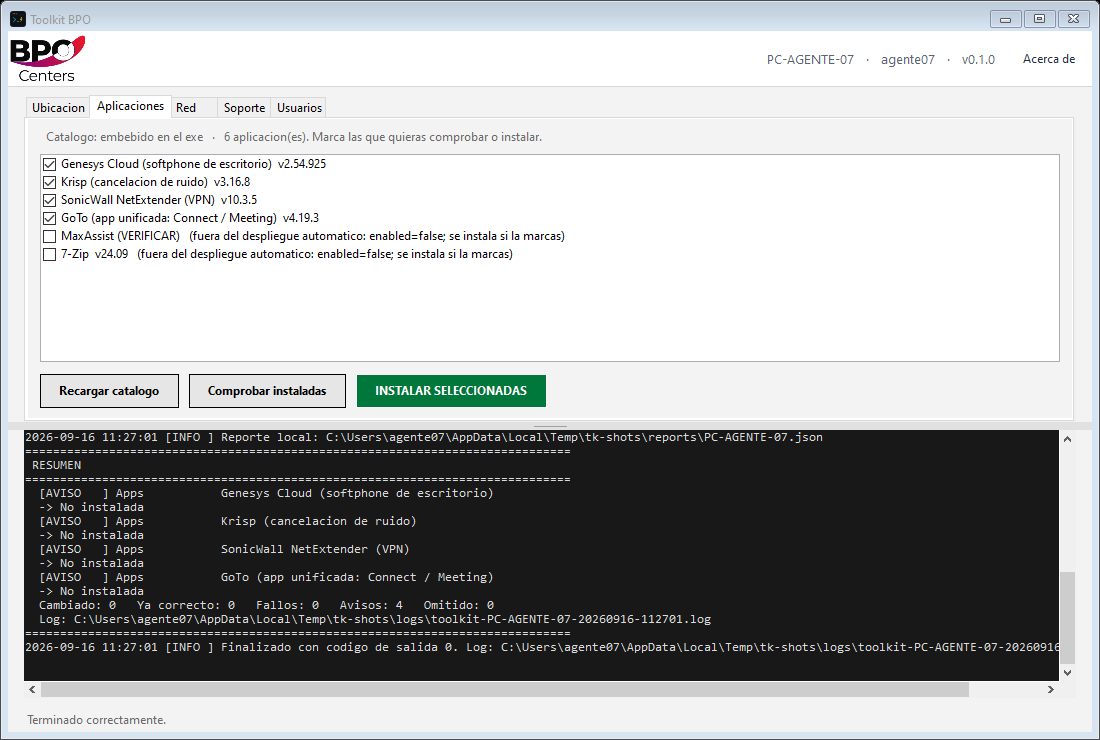
On opening the page you see, for each catalogue application, whether it is installed (and which version), outdated or not installed. Tick the ones you want and press Install selected; Check installed reviews all of them if none is ticked.
- Silently installs MSI, EXE or a ZIP containing them, from the official URL or from the company share.
- Requires
sha256in the catalogue entry and downloads over HTTPS only; verifies the hash before running. - Waits if another installer is running, retries and verifies the application ended up installed.
- Takes a few minutes; do not close the window. Installs are not undone by Revert.
05 Network
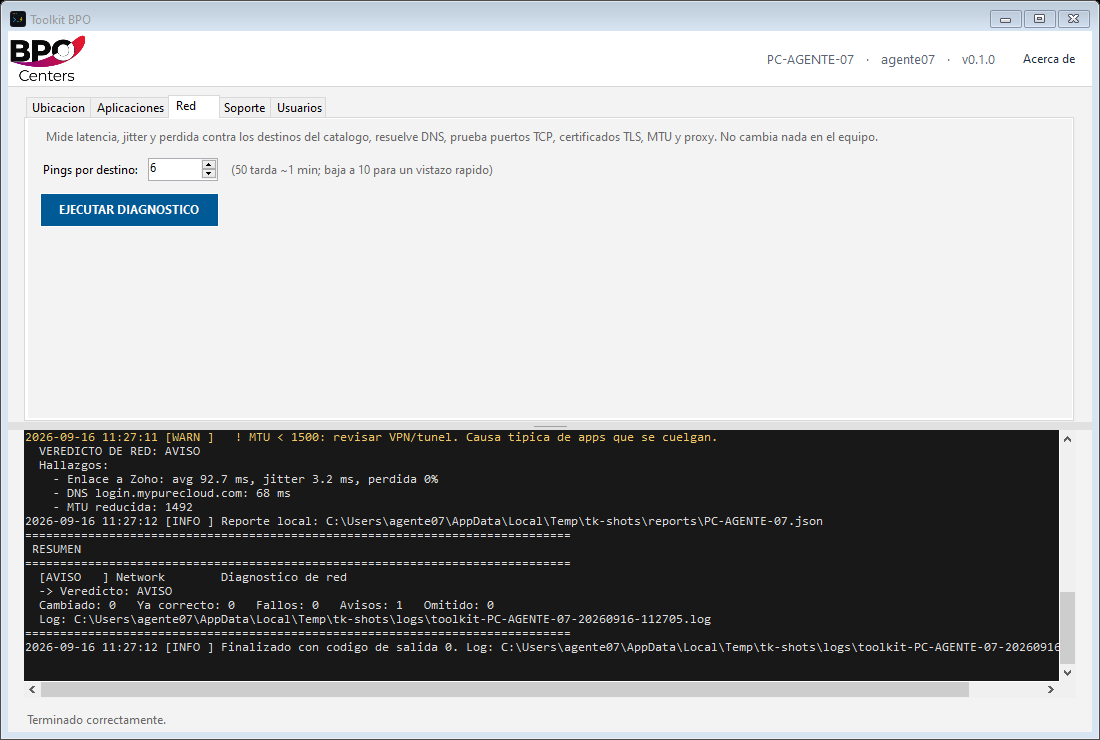
In a call center the network is not measured by "is there Internet?" but by what kills a call: latency, jitter and packet loss. Run diagnostics measures against the catalogue targets (Genesys, Zoho, Krisp, public DNS): ping, DNS resolution, TCP ports, TLS certificates, MTU and proxy. Changes nothing.
06 Firewall and blocking
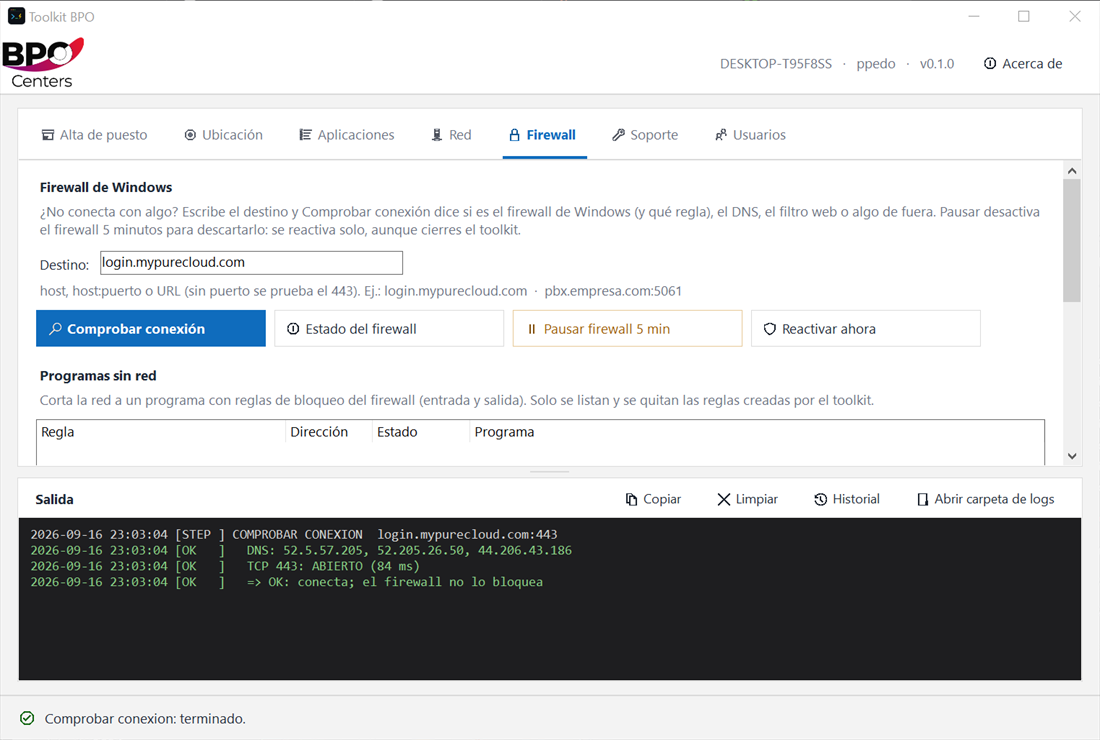
Three things a technician does by hand in wf.msc, the hosts file and chrome://policy, on a single page.
| Button | What it does |
|---|---|
| Check connection | Type host, host:port or a URL. Walks through hosts, DNS, real TCP, active block rules (GPO ones too), profile policy and web filter, and gives a verdict: OK, BLOCKED (and by which rule), NO DNS or NO CONNECTION (the cut is outside Windows) |
| Firewall status | Profiles, service, third-party firewall (if present, pausing the Windows one is pointless) and toolkit rules |
| Pause firewall 5 min | Turns it off to rule it out. A SYSTEM task turns it back on after 5 minutes even if you close the toolkit; if the task cannot be created, it does not pause |
| Resume now | Restores the exact previous state, without waiting |
| Block program… | Pick an .exe: two block rules (inbound and outbound) in the Toolkit BPO group. The list only shows and removes rules from that group |
| Apply filter | Blocks the ticked categories (social, video, messaging, games, betting, adult) and loose domains. Replaces the previous filter; Remove filter leaves everything as it was |
The web filter works on three layers at once:
| Layer | How | What for |
|---|---|---|
| Chrome and Edge | URLBlocklist policy | The agent sees "Blocked by your organization". Immediate; survives IP changes and DNS over HTTPS |
| Firefox | WebsiteFilter policy | Same; applies when Firefox restarts |
hosts file | 0.0.0.0 domain | Desktop apps (WhatsApp, Telegram, Discord…) that do not go through the browser. Can be unticked |
07 Support: which button for which problem
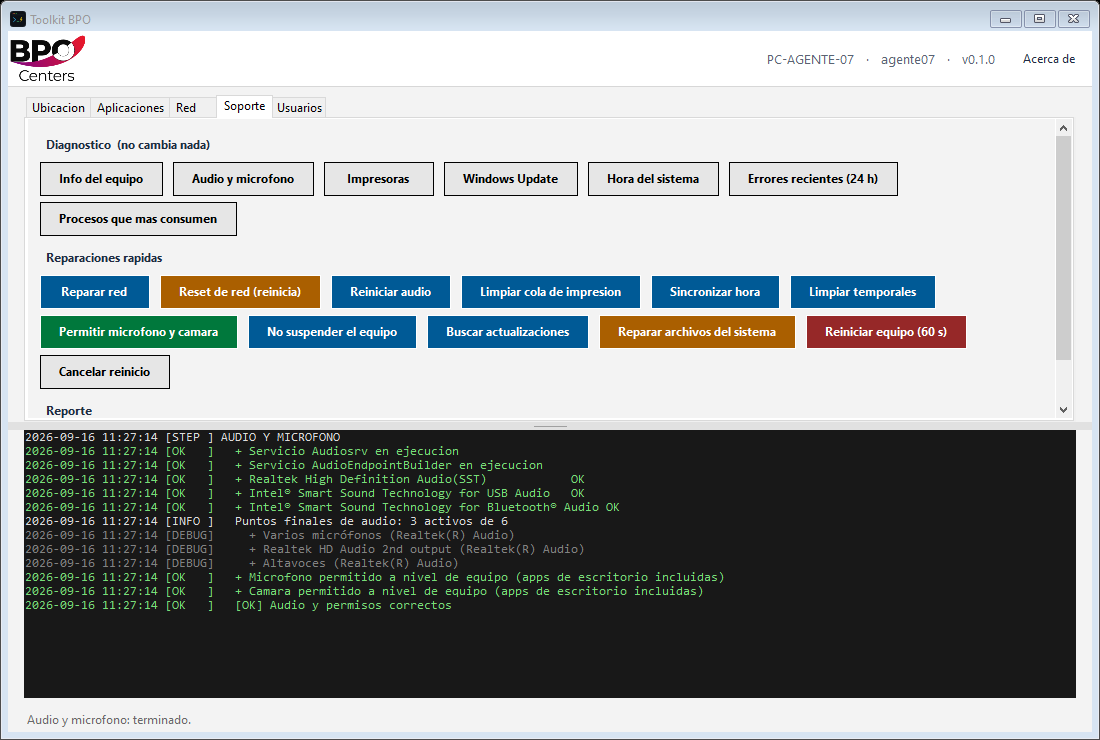
The one-click tools of a first-level technician. Diagnostic ones (Machine info, Audio, Printers, Windows Update, Time, Recent errors, Processes) change nothing; repairs ask for confirmation.
| The agent says | What to press |
|---|---|
| "Zoho will not let me check in" | Location → Check Zoho check-in. Read what is missing and press Activate location. Desktop without Wi-Fi: low accuracy, solved in Zoho with IP restriction |
| "They cannot hear me / I cannot hear" | Support → Audio and microphone. Then Restart audio and, if the mic shows as denied, Allow microphone and camera. Have them reconnect the headset |
| "I cannot connect to X" | Firewall → Check connection with the host. The verdict says whether it is the firewall (and which rule), DNS or something outside |
| "It is slow" | Support → Machine info (RAM and disk), Top processes and Recent errors. If it has been on for weeks: Reboot (60 s) |
| "No internet / it drops" | Support → Repair network (no reboot). If not enough, Network → diagnostics. Last resort: Network reset (needs a reboot) |
| "The printer will not print" | Support → Printers and then Clear print queue |
| "The clock is wrong / the session logs out by itself" | Support → Sync time |
| "Disk full" | Support → Clean temp files (it tells you how many MB it freed) |
| "The softphone / VPN is missing" | Applications → Check installed, then install what is missing |
| "Windows acting up after a power cut" | Support → Repair system files (sfc, 5-20 min) |
| Needs escalation | Support → Save report for ticket: a .txt with everything (machine, audio, network, location, users, ipconfig /all) in C:\ProgramData\Toolkit\reports\ |
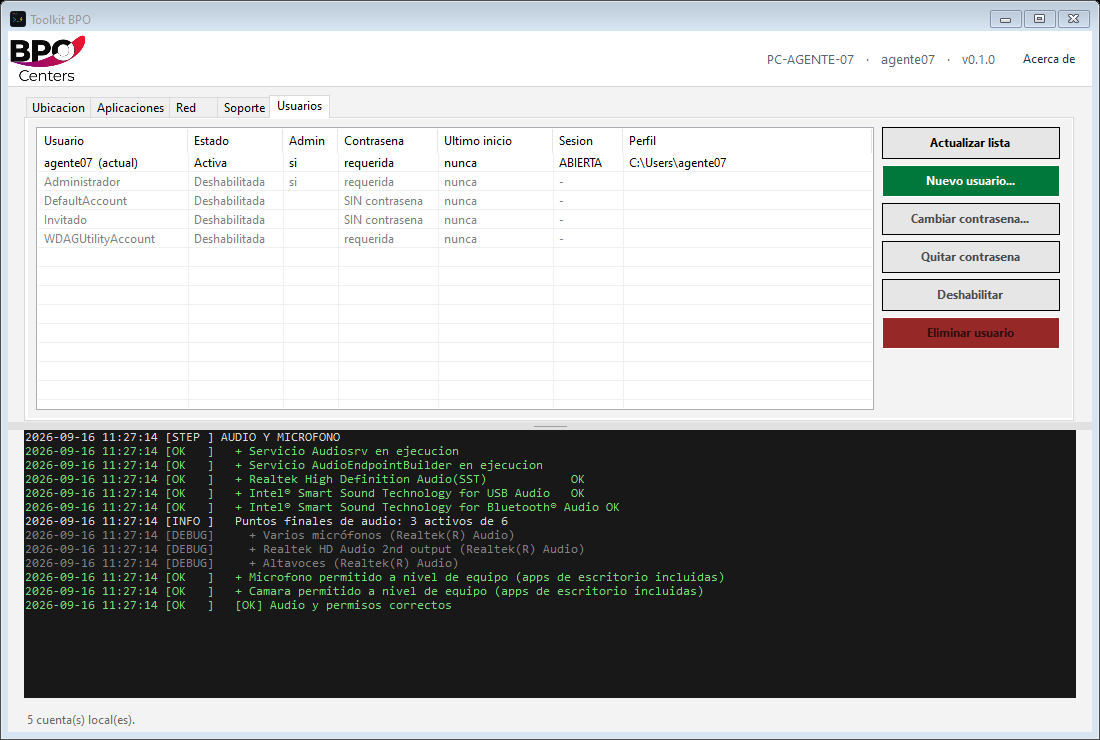
08 Users
Every local account with its status, whether it is an administrator, whether it has a password, last logon, whether its session is open and its profile folder.
| Button | What it does |
|---|---|
| New user | Creates an account; with or without password, administrator or not |
| Change password | Asks for the password twice |
| Remove password | The account logs in without a password (only on the machine itself, not over the network or remote desktop) |
| Enable / Disable | Hides or shows the account again on the sign-in screen |
| Delete user | Deletes the account; asks whether to delete C:\Users\<name> too |
09 Command line
The same logic without a UI, for scripts, scheduled tasks or the RMM. A non-zero exit code means something failed or is pending a reboot.
> Toolkit.exe                          # interfaz gráfica
> Toolkit.exe /report                  # auditoría completa, no modifica nada
> Toolkit.exe /checkin                 # ¿funcionará el check-in de Zoho? no modifica nada
> Toolkit.exe /support                 # diagnóstico de soporte completo + reporte para ticket
> Toolkit.exe /silent /all             # aplica todo sin preguntar
> Toolkit.exe /silent /modules:location
> Toolkit.exe /silent /apps:genesys-cloud,krisp
> Toolkit.exe /rollback                # revierte los cambios de registro
> Toolkit.exe /install-agent /share:\\SERVIDOR\Toolkit$ /ring:piloto
> Toolkit.exe /?                       # ayuda completa
With /install-agent the toolkit installs itself as a SYSTEM scheduled task, reads a manifest.json from the share and applies whatever it says. From then on, any change is rolled out by editing a JSON file, without touching the machines again; each one uploads its report to the share.
10 Configuring
All configuration lives in catalog.json. The exe carries one inside; if you place another next to the exe, that one is used, so you can keep a version per client or per site without recompiling.
location: lock the switch, verify with the API, Zoho sites, maximum accuracy and allowed public IPs.network: ping targets, DNS names, TCP and TLS ports to test (PBX, CRM, VPN…).webFilter: web filter categories; same id replaces the toolkit list, new id is added.apps: one entry per application with URL or share path,sha256, silent arguments and how to detect it.scripts\tools\New-AppFicha.ps1generates it from the installer.
How it is put together, in one line: the exe is a C# shell that embeds PowerShell modules and runs them in memory, never writing them to disk. That avoids ExecutionPolicy issues, antivirus blocking loose scripts and scripts edited here and there. The only thing it writes on the machine is C:\ProgramData\Toolkit\ (logs, reports and the rollback file).
SCREENSHOTS